
An immersive audio experience is just as vital as high-frame-rate visuals when it comes to modern gaming. Whether you are pinpointing enemy footsteps in a competitive shooter or soaking in the orchestral score of an expansive RPG, knowing how to setup speaker for gaming pc correctly can transform your entire experience. In 2026, with the advancement of spatial audio and high-fidelity drivers, the process involves more than just plugging in a cable it requires precise physical placement and software optimization.
There are multiple ways to approach this setup, depending on whether you prefer wired reliability or wireless convenience.
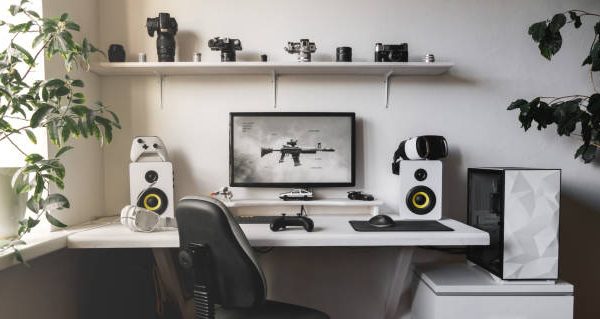
1. Physical Connection Methods
The first step in your journey is physically linking your hardware. Your choice of connection determines the overall sound quality and potential latency.
- Wired (3.5mm/AUX): This is the most common method. Simply plug the speaker’s 3.5mm cable into the green “Line Out” or “Audio Out” port on the back or front of your PC.
- Wired (USB): Many modern gaming speakers use a single USB cable for both power and audio. Plug the USB connector into an available port on your PC; the system should automatically recognize it as a new audio device.
- Wireless (Bluetooth): For a clean, cable-free desk, turn on your speaker’s pairing mode. In Windows, navigate to Settings > Bluetooth & devices to pair the unit. Note that Bluetooth can occasionally introduce slight latency in fast-paced games.
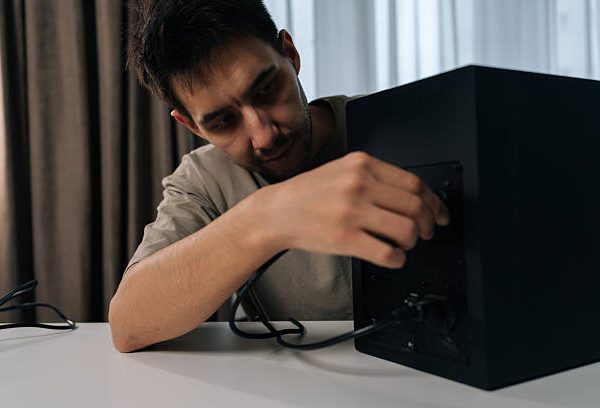
2. Windows Sound Configuration
Once connected, you must ensure Windows is sending the audio signal to the correct hardware.
- Set Default Device: Go to Start > Settings > System > Sound. Under the “Output” section, select your newly connected speakers as the primary device.
- Testing Levels: Use the volume slider in the sound settings to perform a quick test. You should hear a chime from both the left and right speakers.
- Manage Multiple Devices: If you use both a headset and speakers, you can quickly toggle between them using the sound icon in the Windows taskbar.
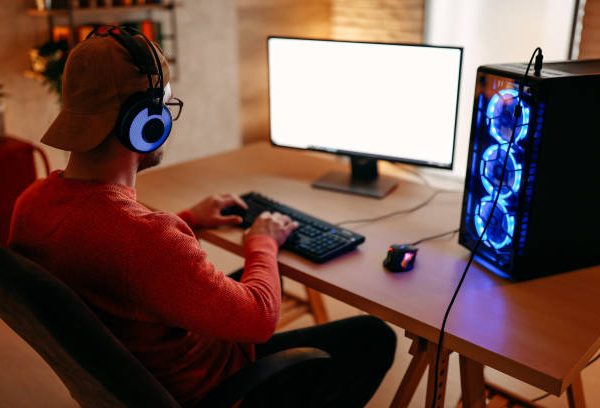
3. Optimum Physical Placement for Gaming
Proper positioning is the “secret sauce” of a high-end setup. Even affordable speakers can sound premium if placed correctly.
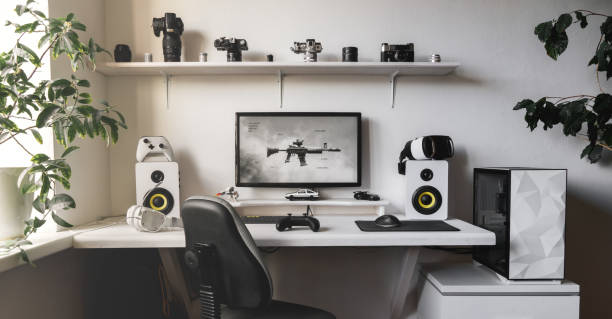
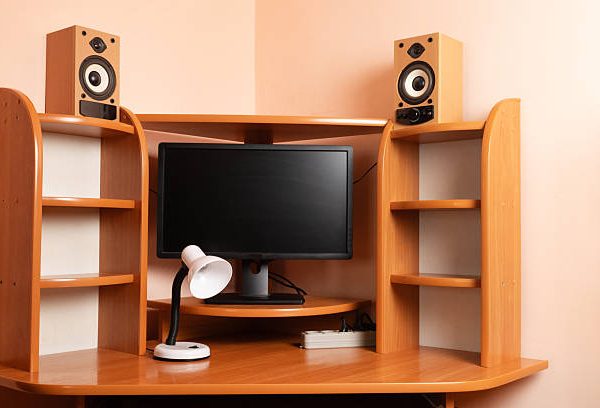
- The Equilateral Triangle: Position your left and right speakers so that they and your head form an equilateral triangle. This ensures the “stereo image” is centered perfectly on your ears.
- Ear Level Alignment: For the best clarity, try to have the tweeters (the smaller speakers) at roughly the same height as your ears. Using small speaker stands can help achieve this on a standard desk.
- Distance from Walls: To prevent “boomy” or muddy bass, keep your speakers at least 6–12 inches away from the wall, especially if they are rear-ported.
- Subwoofer Placement: If you have a 2.1 system, place the subwoofer on the floor under your desk. Low-frequency sound is non-directional, so its exact location is less critical than your main satellites.
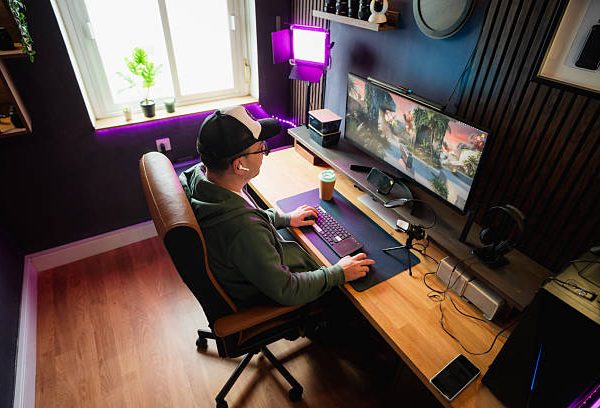
4. Advanced 5.1 Surround Sound Setup
For those looking to play PC games with a true 4.1 or 5.1 speaker array, the setup is slightly more complex.
- Multiple Audio Jacks: Standard surround sound speakers usually require three different 3.5mm cables (Green for front, Black for rear, and Orange for center/sub). Ensure each is plugged into the color-coded port on your motherboard or sound card.
- Room Layout: Place your front speakers at 30-degree angles from your center line and your rear speakers at roughly 110-degree angles. This creates a “bubble” of sound that allows you to hear threats coming from behind you.
FAQ: Gaming PC Audio Setup
Why are my speakers not making any sound?
Ensure the speakers are powered on, and the volume knob is turned up. If there is still no sound, check that they are selected as the “Default Output Device” in your Windows Sound Settings.
Should I use a sound card or onboard audio?
For most gamers in 2026, modern motherboard audio is more than sufficient. However, if you are using high-impedance audiophile speakers, a dedicated sound card or an external DAC/AMP can provide cleaner power and higher resolution.
Can I use speakers and a headset at the same time?
Yes, but you usually have to select one as the primary output. Some advanced software allows you to split audio (e.g., game sounds to speakers and chat to a headset), but this requires specific configuration in your chat apps or game settings.
How do I fix speakers that are crackling or popping?
This is often caused by a loose connection or electromagnetic interference. Ensure the 3.5mm jack is pushed in all the way, and keep your audio cables away from power bricks or high-voltage cords.
Are you setting up a simple two-speaker stereo system, or are you going for a full 5.1 surround sound experience? Learn more about this on Discover Local Now.